Jobs, Labor Rates, and Record Work improvements
Split a visit into jobs, bill each technician at the right rate, and record a whole crew on one page

- Date: October 30, 2026
- Applies to: NORDVEST on the web.
- Action: Set up your labor rates in Settings > Invoice rules.
Jobs on a service request
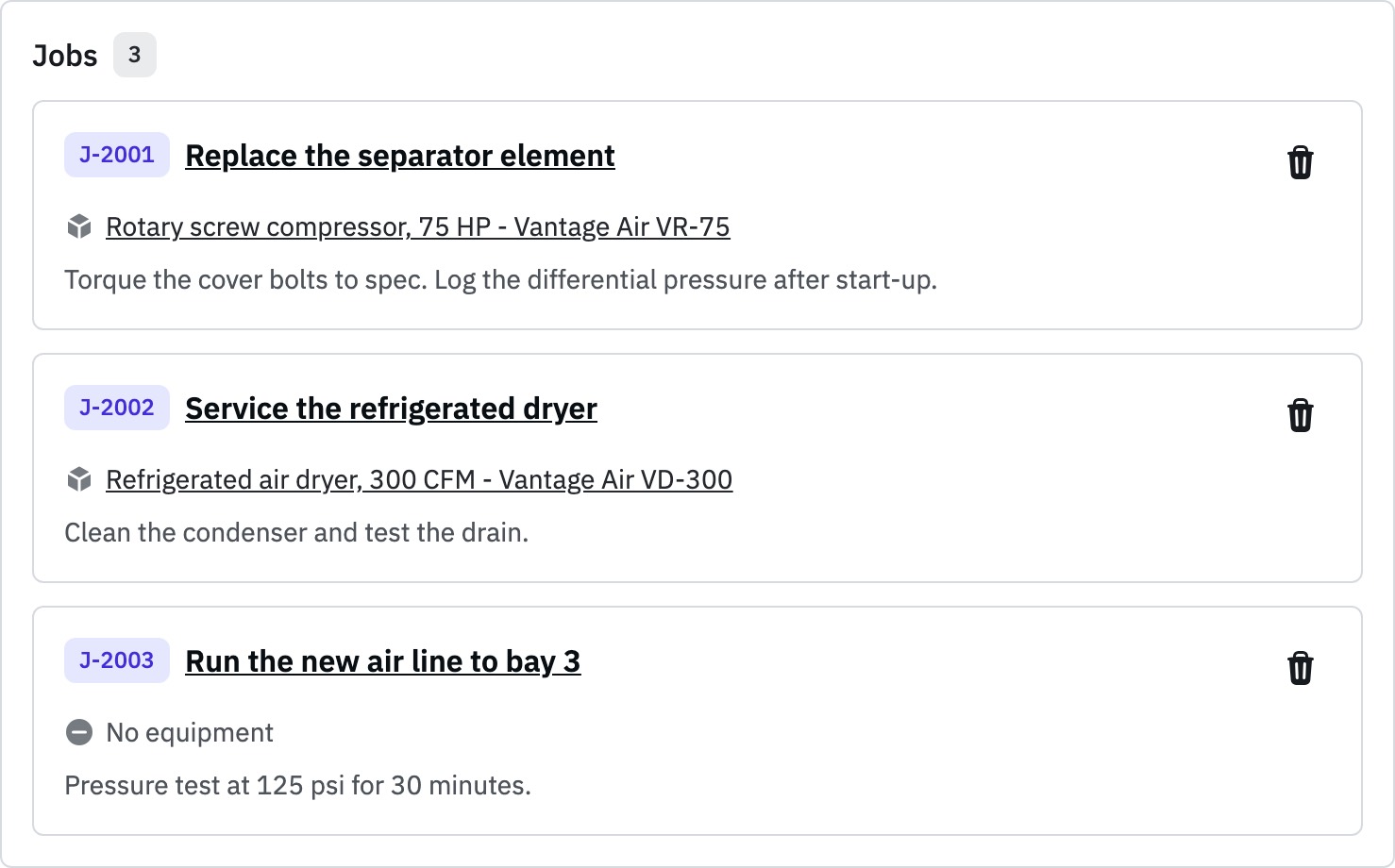
A visit often has more than one piece of work. Now each piece can be a job.
- Add a job. On a service request, select Add job at the top right. Give the job a title and instructions. Name one asset, an asset group, or no equipment.
- Each job has a number. Jobs start at J-2001, so the office and the technician can talk about the same work.
- Preset jobs on an agreement. Add jobs on the Jobs card of a service agreement. Each new PM request gets a copy.
- Jobs print. The work order and Print Day list each job with its asset and instructions.
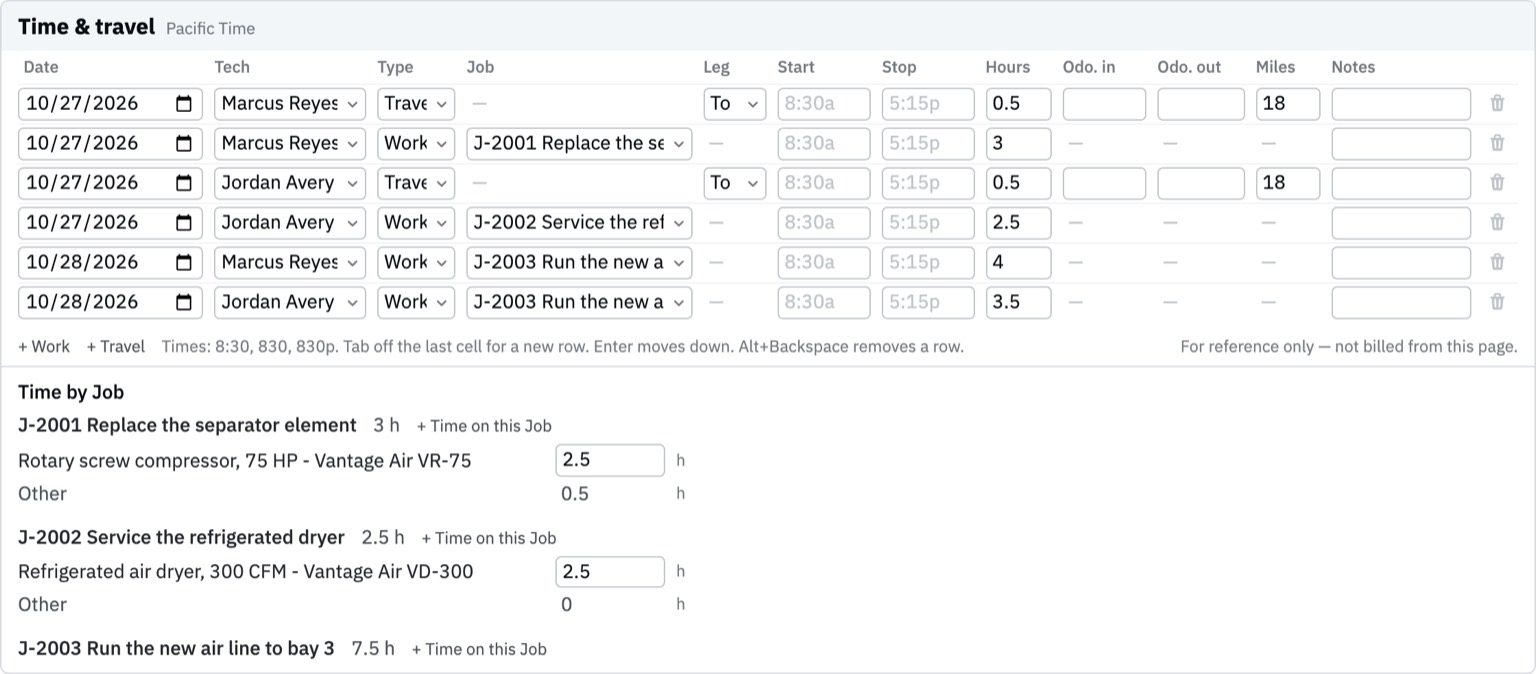
- Record time on a job. On Record Work, each work row can name a job. Divide the hours of a job across its assets.
A note on the iPhone app: it shows jobs now. Until iPhone app 1.3, which is coming soon, you cannot log hours on a job from the phone. Your notes still come over.
Every technician on Record Work
Record Work now holds a whole crew and a job of more than one day.
- Every visit day is on one page. The time grid has a Date column. Each day keeps its own parts, checks and readings.
- Add to form adds. Select Add to form to add the visit of a technician. A second visit no longer erases the first.
- Phone times come in as recorded. Start and stop times and odometer readings to a tenth of a mile come in from the phone.
Labor rates and travel
Invoice rules now know who did the work, when, and how far they drove.
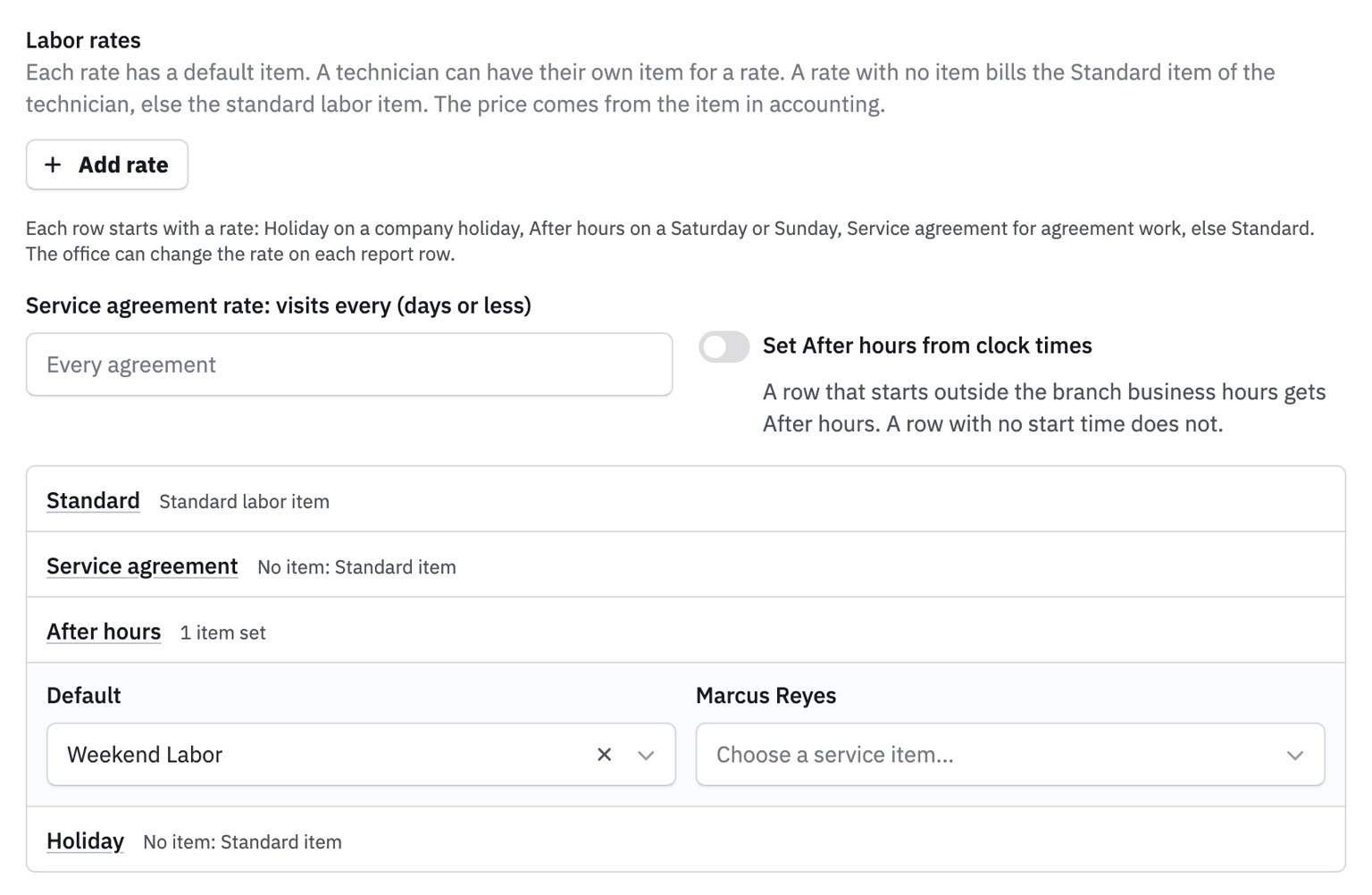
- A rate for each kind of work. Set Standard, Service agreement, After hours and Holiday rates. Each technician can have their own item for each rate.
- Holidays and weekends. Add your company holidays. Work on a holiday or a weekend starts at that rate.
- Service area. Give each branch a list of counties. Then set which drive time and miles you charge, in or outside the area.
- Move your current rules. Select Move to labor rates. The move publishes only when your weekday work bills the same items as before.
Clean up your customer addresses
Service areas and travel billing use the map point of each site. An address that does not put a building on the map can bill the wrong travel.
- See every address to fix. Admins and service managers can open Settings > Data fixes > Customer addresses. It lists each customer and site whose address does not put a building on the map, and shows the problem.
- No address at all. The page opens on Bad address. Select No address to see the customers with no address.
- Fix it in place. Select Edit to correct the address. If the address is correct, select Geocode again. The row shows Geocoded when the address matches a building.
What's coming next
iPhone app 1.3 is coming!
Jobs will be fully supported in the new version. It also fixes many of the small annoyances you have told us about.
Join the TestFlight for early access to the latest versions of the iPhone app: https://testflight.apple.com/join/4EWWc4x2
Safety Checklists
Keep your team safe and alert with safety checklists. Whether it's a weekly equipment inspection, a pre-job safety check, or anything in between, a checklist makes sure nothing gets skipped.
Follow the build
New field notes, delivered without tracking pixels.
Unsubscribe anytime.